单选按钮

  • 更新时间:2025-12-02 10:12:47

单选按钮-radio

原生类型:{com.google.android.material.radiobutton.MaterialRadioButton}

单选按钮:一般需要配合单选按钮组(radio-group)的配合才能实现互相排斥的效果,这个控件常用在只需要在多个选择中选择一个的情况。
一、常用属性

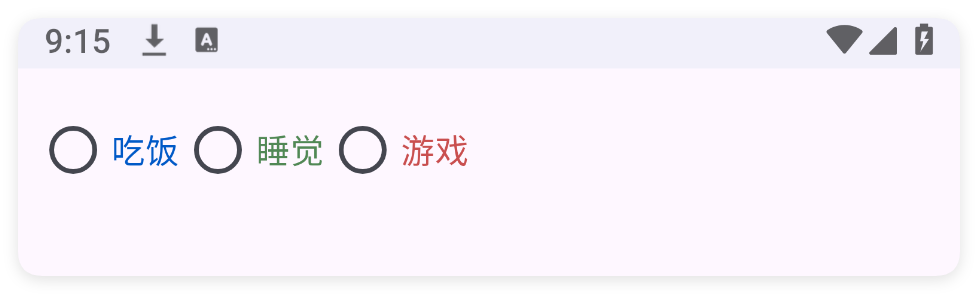
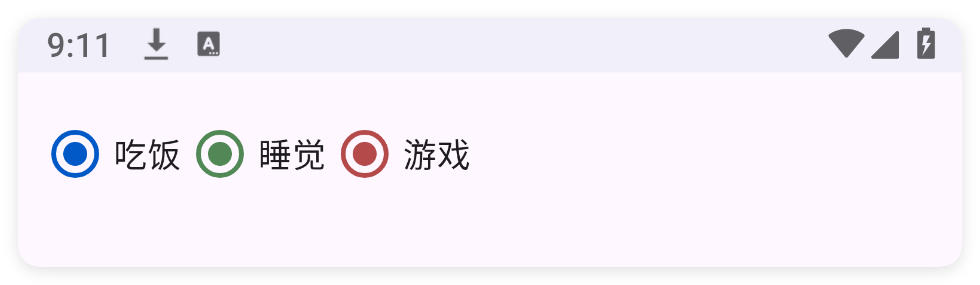
color - 主题颜色

设置主题颜色

<ui>
    <statusbar />
    <linear w="max" padding="10" dir="h">
        <radio text="吃饭" />
        <!-- 设置主题颜色 color="#518855" -->
        <radio color="#518855" text="睡觉" />
        <radio color="#B44A4A" text="游戏" />
    </linear>
</ui>

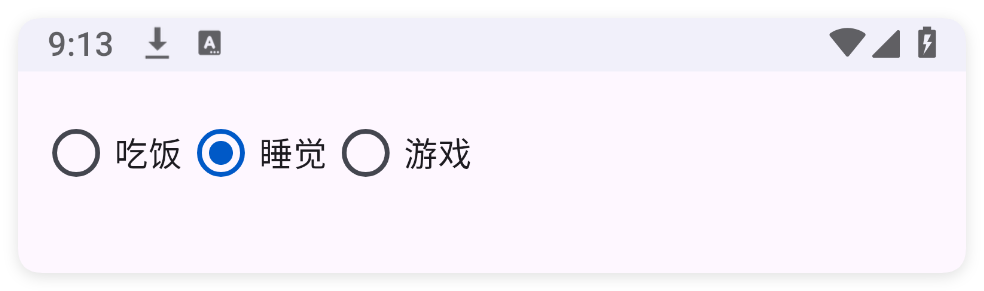
check - 选中状态

设置选中状态

<ui>
    <statusbar />
    <linear w="max" padding="10" dir="h">
        <!-- 设置选中状态 check="true" -->
        <radio text="吃饭" check="false" />
        <radio text="睡觉" check="true" />
        <radio text="游戏" check="false" />
    </linear>
</ui>

text - 文本

设置文本

<ui>
    <statusbar />
    <linear w="max" padding="10" dir="h">
        <!-- 设置文本 text="吃饭" -->
        <radio text="吃饭" />
        <radio text="睡觉" />
        <radio text="游戏" />
    </linear>
</ui>

textColor - 文本颜色

设置文本颜色

<ui>
    <statusbar />
    <linear w="max" padding="10" dir="h">
        <!-- 设置文本颜色 textColor="theme" 指的是使用app主题主要颜色 -->
        <radio text="吃饭" textColor="theme" />
        <!-- 设置文本颜色 textColor="#518855" -->
        <radio text="睡觉" textColor="#518855"/>
        <radio text="游戏" textColor="#C94F4F" />
    </linear>
</ui>

minW - 最小宽度

设置最小宽度

<radio minW="100" />

minH - 最小高度

设置最小高度

<radio minH="100" />

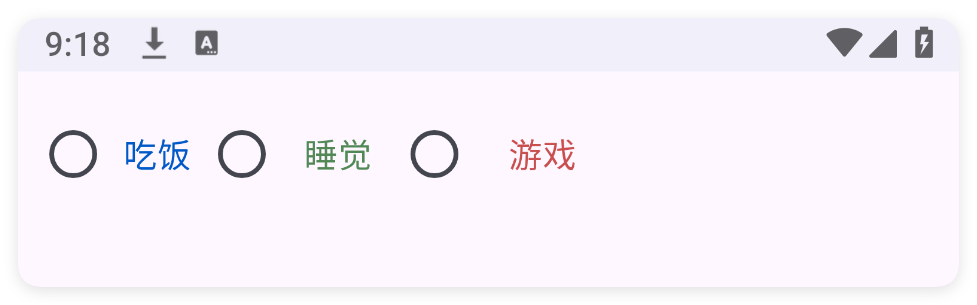
padding - 内边距

设置内边距

<ui>
    <statusbar />
    <linear w="max" padding="10" dir="h">
        <!--padding顺序是:左,上,右,下-->
        <!--padding只设置一个值:则设置所有方向的内边距-->
        <!--padding只设置两个值:则设置左右和上下方向的内边距-->
        <radio text="吃饭" textColor="theme" padding="5" />
        <!-- 设置内边距 padding="10" -->
        <radio text="睡觉" textColor="#518855" padding="10" />
        <radio text="游戏" textColor="#C94F4F" padding="15" />
    </linear>
</ui>

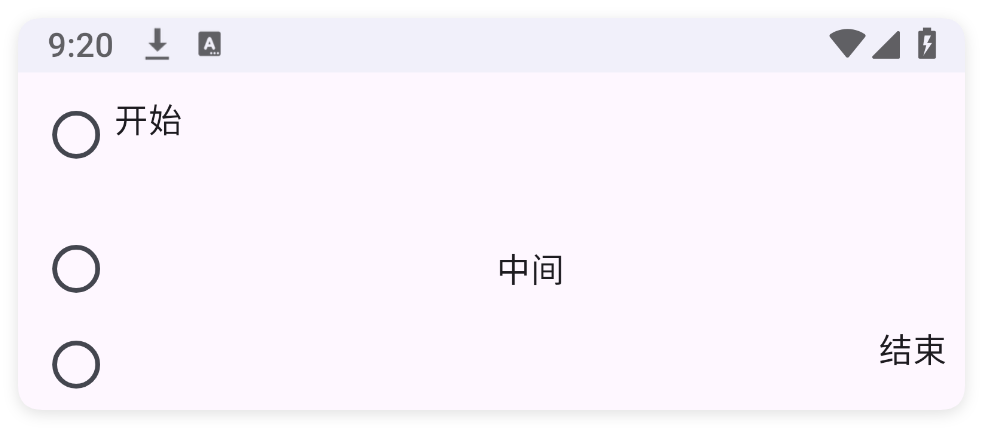
gravity - 重力

设置重力

<radio gravity="start" h="100" margin="20" text="重力:start" w="max" />

bg - 背景颜色

设置背景颜色

<ui>
    <statusbar />
    <linear w="max" padding="10" dir="h">
        <!-- 设置背景颜色 bg="#518855" -->
        <radio text="绿色" bg="#518855" />
        <radio text="红色" bg="#B44A4A" />
    </linear>
</ui>

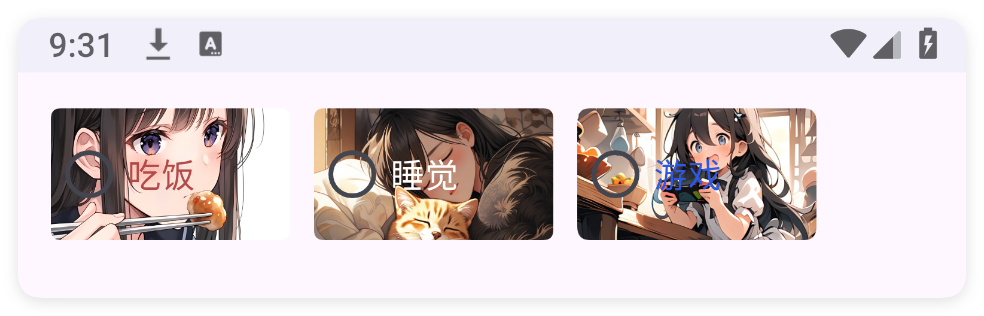
bgImg - 背景图片

设置背景图片

<ui>
    <statusbar />
    <linear w="max" padding="10" dir="h">
        <!--
        通过 bgImg="/res/eat.png" 设置控件的背景图片
        为了让图片显示的大小一样所以设置了 w="100" h="55"
        为了让文字显示的明显所以设置了文本颜色 textColor="#B34A4A"
        为了让每个单选按钮能够间隔开来所以设置了外边距 margin="5"
         -->
        <radio text="吃饭" margin="5" textColor="#B34A4A" bgImg="/res/eat.png" w="100" h="55" />
        <radio text="睡觉" margin="5" textColor="#FFFFFF" bgImg="/res/sleep.png" w="100" h="55" />
        <radio text="游戏" margin="5" textColor="#2e58e2" bgImg="/res/game.png" w="100" h="55" />
    </linear>
</ui>

二、常用函数

isChecked()

判断选中状态

  • 返回 : {boolean} 是否选中了

  • 版本 : 1.8.2

//解析布局,获得ui对象
let ui = $ui.layout("./mUi.xml");
//获取控件
let radio = ui.id("mRadio");
//判断选中状态
if(radio.isChecked()){
    log("选中了");
}

check(checked)

设置选中状态

  • 参数 : checked {boolean} 是否选中

//解析布局,获得ui对象
let ui = $ui.layout("./mUi.xml");
//获取控件
let radio = ui.id("mRadio");
//设置选中状态
radio.check(true);

onCheck(callback)

设置选中状态回调事件

  • 参数 : callback {(isChecked)=>{}} 回调事件

//解析布局,获得ui对象
let ui = $ui.layout("./mUi.xml");
//获取控件
let radio = ui.id("mRadio");
//设置选中状态回调事件
radio.onCheck((isChecked)=>{
    //..
});

setGravity(gravity)

设置控件的对齐方式

  • 参数 : gravity {String} 例如:"center|bottom"

//解析布局,获得ui对象
let ui = $ui.layout("./mUi.xml");
//获取控件
let radio = ui.id("mRadio");
//设置控件的对齐方式
radio.setGravity("center|bottom");

setText(text)

设置文字

  • 参数 : text {String} 文字

//解析布局,获得ui对象
let ui = $ui.layout("./mUi.xml");
//获取控件
let radio = ui.id("mRadio");
//设置文字
radio.setText("吃饭");

getText()

获得文字

  • 返回 : {String} 文字

//解析布局,获得ui对象
let ui = $ui.layout("./mUi.xml");
//获取控件
let radio = ui.id("mRadio");
//获得文字
let text = radio.getText();

setColor(color)

设置主题颜色

  • 参数 : color {String} 颜色

//解析布局,获得ui对象
let ui = $ui.layout("./mUi.xml");
//获取控件
let radio = ui.id("mRadio");
//设置主题颜色
radio.setColor("#26282E");

setTextColor(color)

设置文字颜色

  • 参数 : color {String} 颜色

//解析布局,获得ui对象
let ui = $ui.layout("./mUi.xml");
//获取控件
let radio = ui.id("mRadio");
//设置文字颜色
radio.setTextColor("#26282E");